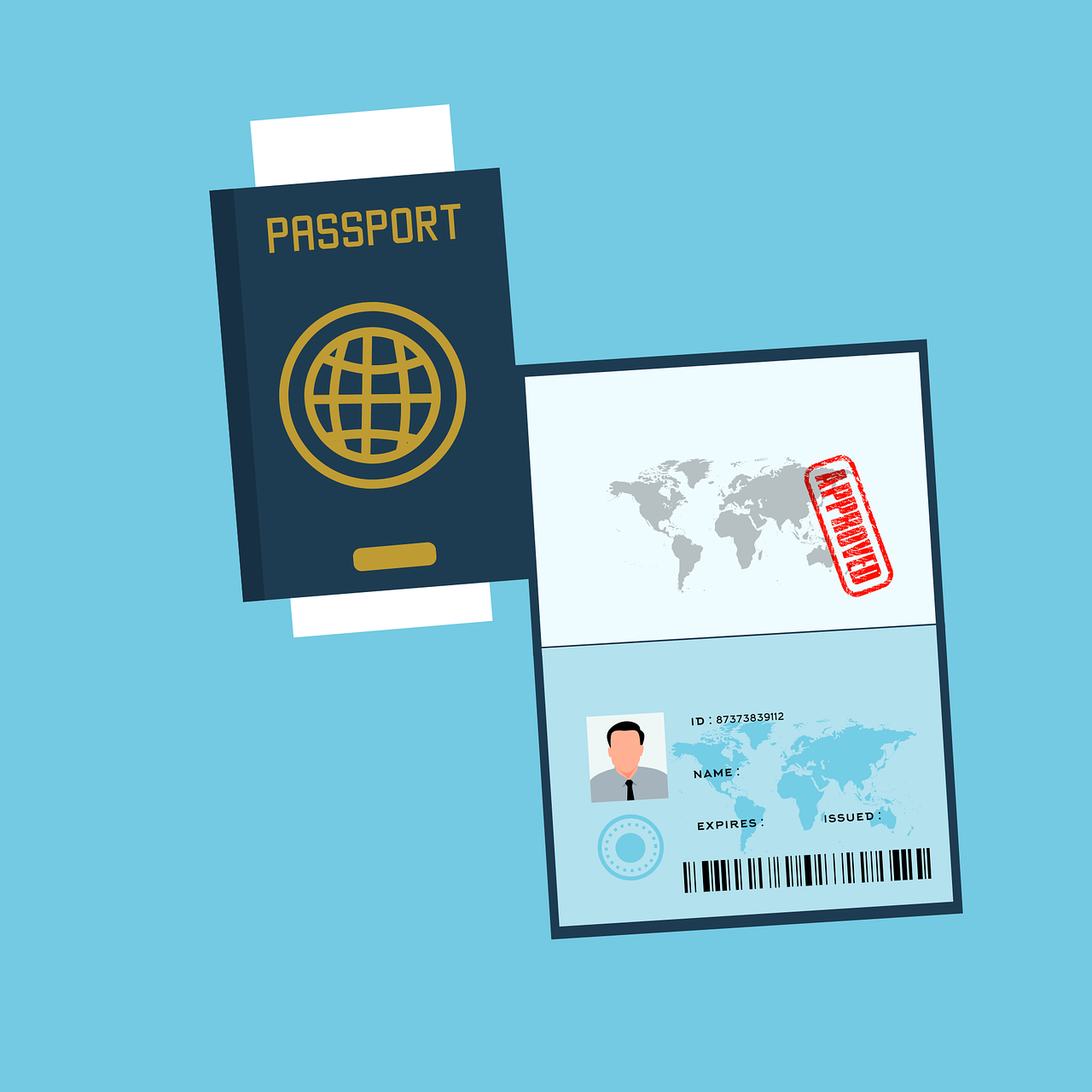
By 2026, the UK immigration system will have completed its biggest change in a decade: a complete transition to a ‘digital by default’ system. The era of physical biometric residence permits and passport vignettes is over. Now, your immigration status is a digital document called eVisa, maintained through your UKVI account.
The system provides security and convenience, while adding an important task for the traveler: data reconciliation. If you renew your passport, your eVisa is still valid, but you will need to manually update the ‘digital bridge’ between the new document and the Home Office database. No longer linking your passport to your UKVI account could result in airlines refusing you at the border or delaying you at the border force for a long time.
This guide links a new passport to UK eVisa, ensuring your digital identity stays up to date and your travel plans remain sound.
1. Key Terms: Why Link
Your eVisa is not a separate document, It is a digital entry in the Home Office database of the “resident” with the unique passport number used when applying for the visa.
Carrier verification: Airlines use the Advanced Passenger Information (API) system to check eligibility before boarding a flight to the UK. If you present a new passport that is not linked to your UKV account at check-in, the airline’s system will give you a visa not available result.
eGates and Border Force: Upon arrival, eGates will automatically scan your passport and compare it directly with your eVISA information. If the codes don’t match, the door won’t open, and you’ll need the help of a Border Force officer and often a long one.
Proof of entitlement: If you are starting a new job, renting a home or joining the NHS, you will need to create a “share code”. To do this, you will first need to log in to your UKVI account, which requires your current passport number registered in the system.
2. Prepare for the new change
Before starting the online process, gather the following essential items to avoid any downtime.
- Your new passport is: Make sure it is biometric (indicated by the small gold symbol on the cover).
- Your old ID: You will need the ID number associated with your account (for example, expired passport or old BRP) to log in.
- Phone: You may need the “UK Immigration: Identity Check” app to verify the biometric chip in your new passport.
- Internet and bright light: Face recognition and chip scanning require a clear image.
Step 3: Update the ID
This process is accomplished through the “Update Your UK Visa and Immigration Account Information” service.
Step 1: Log in to the service
Go to the official GOV.UK portal. You will be asked to log in using the ID linked to your current account.Tip: If you lost your old passport and don’t know the number, you may need to use the Unique Applicant Number (UAN) or Global Web Form (GWF) from the original visa approval email.
Step 2: Select “Identity Document”.
Once logged in, you will see a dashboard with different personal information (address, phone number, email). Select the section called “Personal Information”. Here, you will see the currently registered passport. Click “Add New ID”.
Step 3: Enter your new passport information
You will be asked to enter:
- New passport number.
- The country in question.
- It will be over today.
Step 4: Verify via the app
The Home Office now wants a digital cheque. UK Immigration App, You will be asked to use an ID check.
QR Code Scanner: The desktop website displays a QR code that can be scanned on your phone.
Scan your biodata page: Use your phone’s camera to take a clear picture of the page containing your photo.
Chip Reading: Place your phone in your sealed passport. The app uses near field communication (NFC) to read the biometric chip. This may take several times; Try to move the phone slowly it has been updated.” To be 100% sure, log back into your UKVI account after receiving the confirmation and check that you can generate a “Share Code” using your new passport number.
4. Troubleshooting Common Issues
“The App Won’t Read My Chip”
This is the most common technical hurdle.
Remove Cases: Take your phone out of its case and remove any covers from the passport.
NFC Placement: On iPhones, the NFC reader is at the very top edge. On Androids, it is often in the center of the back.
Check “ReadID Me”: If you suspect your passport chip is faulty, download the third-party “ReadID Me” app. It’s a free tool used to verify if a chip is functional. If it can’t read it, your passport chip may be damaged, and you may need a new one.
Can’t Log In to My Account:If you no longer have access to the phone number or email you used to set up your account.Use the “Recover your account” link on the sign-in page.You will be asked a series of security questions based on your original application.If this fails, you must contact the UKVI Resolution Centre. In 2026, they offer a 24/7 webchat service for account access issues.
Name Discrepancies
If your new passport has a different name (e.g., due to marriage or deed poll), you cannot simply “update” the document. You must submit a separate “Change of Name” request within the same portal. You will be required to upload digital copies of your Marriage Certificate or Change of Name Deed. This process usually takes longer (2–4 weeks) because it requires human verification.
5. Managing Multiple Nationalities
If you are a dual national, the UKVI system allows you to link multiple passports to a single eVisa.
The Travel Rule: You must travel using the passport that is currently “active” in your UKVI account.
Recommendation: If you frequently alternate between two passports (e.g., a Nigerian and a US passport), ensure both are registered in your UKVI account. The system can hold multiple valid documents simultaneously, allowing the border system to recognize you regardless of which one you present.
6. The 2026 Safety Net: Carrying Old Documents
Despite the transition to a digital system, “technical glitches” remain a reality. For your first 2–3 trips after renewing your passport, it is highly recommended to carry:
Your Old Passport: Even if clipped/expired.
A Printed Copy of Your eVisa Summary: This is available on your UKVI account under “View and Prove”
Your Expired BRP: If you still have it.
While these are not “official” documents anymore, they serve as a secondary layer of proof that can help a Border Force officer manually find your record if the automated systems fail.
7. Summary Checklist for Success
Step Action Timing
1 Receive a new passport. Day 1
2 Sign in for UKVI Account. Day 1
3 Use the “UK Immigration: ID Check” app to verify a new passport. Day 1
4 Wait for the “Update Confirmed” email. Days 2–5
5 Log in with new passport to verify. Day 6
6 Proceed with international travel. Day 7+
Conclusion
The shift to eVisas has removed the stress of lost physical cards and the long waits for “No Time Limit” stamps. However, it has replaced physical maintenance with digital maintenance. Linking your new passport is the single most important task you must perform to keep your UK immigration status functional.
By following the “Update your details” process as soon as your new passport arrives, you ensure that your digital identity remains as valid and accessible as the physical book in your hand.